
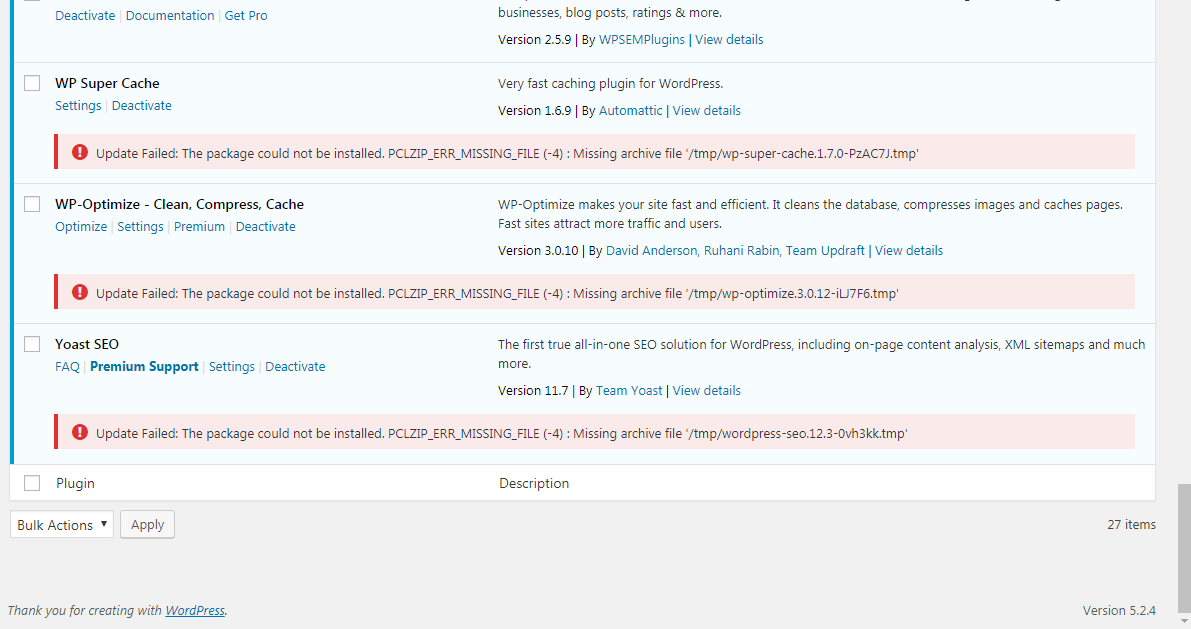
Encountering the error “The package could not be installed. PCLZIP_ERR_MISSING_FILE (-4) : Missing archive file” in WooCommerce or any WordPress installation can be frustrating. This error typically occurs during plugin or theme installations and updates. Fortunately, there are several ways to address this issue. This guide will walk you through various methods to resolve this problem, ensuring your WooCommerce store runs smoothly.
Understanding the Error
The error message indicates that WordPress is unable to find the necessary file in the archive package during the installation or update process. This can be caused by several factors, including corrupted files, incomplete downloads, or server configuration issues.
Method 1: Re-download the Package
Sometimes, the error occurs because the download was incomplete or corrupted. Try re-downloading the plugin or theme from the source and upload it again.
- Go to the source of your plugin or theme and download the package again.
- In your WordPress dashboard, go to Plugins > Add New or Appearance > Themes > Add New.
- Upload the newly downloaded package and try installing it again.
Method 2: Increase PHP Memory Limit
Increasing the PHP memory limit can sometimes resolve this issue, especially if it is caused by insufficient memory allocation.
- Access your site’s root directory via FTP or your hosting control panel.
- Open the
wp-config.phpfile. - Add the following line before the
/* That's all, stop editing! Happy blogging. */line:
define('WP_MEMORY_LIMIT', '256M');- Save the changes and try installing the package again.
Method 3: Verify File Permissions
Incorrect file permissions can prevent WordPress from accessing the necessary files. Ensure your file permissions are set correctly.
- Access your site via FTP or your hosting control panel.
- Navigate to the
wp-contentdirectory. - Ensure that the permissions for
wp-content,themes, andpluginsdirectories are set to755. - Ensure that the permissions for files within these directories are set to
644.
Method 4: Upload the Package Manually
If the automatic upload fails, you can manually upload the package via FTP.
- Extract the plugin or theme package on your computer.
- Access your site via FTP or your hosting control panel.
- Upload the extracted folder to the
wp-content/pluginsdirectory for plugins orwp-content/themesdirectory for themes. - Go to your WordPress dashboard and activate the plugin or theme.
Method 5: Check Server Configuration
Sometimes server configurations can cause this issue. Ensure your server meets the requirements for running WordPress and WooCommerce.
- Make sure your server is running the recommended versions of PHP, MySQL, and Apache/Nginx.
- Verify that
zipextension is enabled in your PHP configuration. You can check this in your hosting control panel or by creating aphpinfo.phpfile with the following content:
<?php phpinfo(); ?>- Upload this file to your server and access it via your browser to see if the
zipextension is enabled.
Method 6: Add a /temp directory
If all else fails, this solution is guaranteed to work. If you notice the error message they all contain the same features. That is, they all contain the /temp/ directory. While the temp directory component of the error may seem arbitrary and unrelated to the error, it is the key cause. What is happening is the necessary directory for updating, /temp/, is missing. This happens to be an easy fix though, and can be solved with a single line of code in your wp-config file.
Search for the following line: define('ABSPATH', dirname(__FILE__) . '/'); and add the following
/*Set WordPress temporary directory */
define('WP_TEMP_DIR', ABSPATH . 'wp-content/temp');
Conclusion
Fixing the “The package could not be installed. PCLZIP_ERR_MISSING_FILE (-4) : Missing archive file” error in WooCommerce is essential for maintaining a functional online store. By following the methods outlined above, you can troubleshoot and resolve this issue effectively. Whether it’s re-downloading the package, increasing PHP memory, verifying file permissions, uploading manually, or checking server configuration, these steps will help ensure your WooCommerce store runs smoothly.
Remember to always back up your site before making any changes to avoid data loss. Happy troubleshooting!

I have been working with WordPress and WooCommerce since 2012 and have developed a deep knowledge of the content management system. Since 2012, I have developed several plugins and designed dozens of websites utilising different frameworks, CMS’s and programming languages. I am proficient in PHP, Python, Java, C, C++, R and JavaScript with limited experience in Go, Kotlin and Swift.
Educationally, I have a Master’s degree in cyber security a Bachelor’s (Hons, First Class) in Applied Research and a Graduate Certificate in Data Science. I’m currently undertaking PhD studies investigating IoT cybersecurity. I recently graduated with First Class Honours and Masters of Information Technology, receiving the Executive Dean’s Award for studies undertaken in the 2021 and 2022 academic years. I have worked in the information technology industry for the past 11 years primarily as a software/web developer specific to design, optimisation, network management and security. My research interests are in the areas of Internet of Things (IoT), 5G and Beyond Networks, information security for wireless networks and software development.
Stay In Touch
